
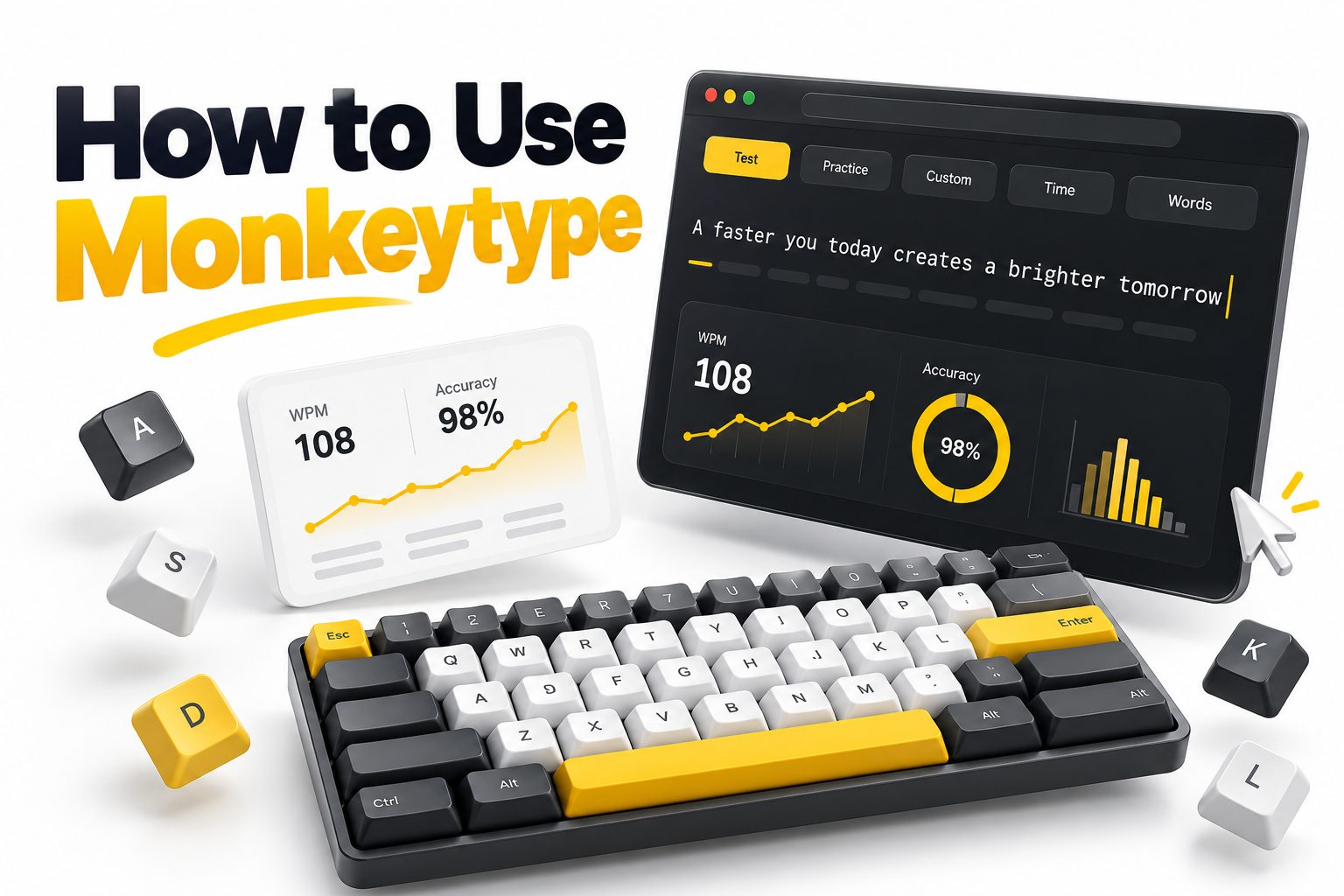
Monkeytype is a browser-based typing test that helps you measure speed, improve accuracy, and practice under different conditions. You can start typing immediately without creating an account, but the interface contains enough modes and settings that first-time users may not know where to begin. Learning how to use Monkeytype properly means choosing a suitable test, reading the results correctly, and practicing in a way that builds reliable typing habits rather than chasing a single high score.
This article explains how to use Monkeytype from your first test onward. You will learn how to select time, word, quote, custom, and Zen modes; configure language and difficulty settings; interpret words per minute and accuracy; and create a productive practice routine. It also covers account features, keyboard shortcuts, common mistakes, troubleshooting, and alternatives for skills such as transcription or coding practice. By the end, you will be able to turn Monkeytype from a simple speed test into a focused typing-training tool.
Getting Started With Monkeytype
Open Monkeytype in a modern web browser and click inside the typing area. The test begins as soon as you type the first displayed character. You do not need to press a start button, download software, or register before taking a basic test.
Monkeytype shows a sequence of words near the center of the screen. Type each word exactly as displayed and press the spacebar to move forward. Depending on your settings, incorrect letters may be highlighted while the test continues or you may be required to correct them.
Selecting Your First Test
The controls above the word area let you choose a test category and length. A short timed test is the easiest starting point because it introduces the interface without creating much fatigue. Select the time mode and choose 30 or 60 seconds for a balanced first attempt.
Avoid treating the opening test as a personal record attempt. Type at a comfortable pace, keep your eyes on the upcoming text, and finish without restarting after small errors. Your initial result is most valuable as a baseline for future comparisons.
Quick-start checklist
- Visit the official Monkeytype website in a supported browser.
- Leave the language set to the one you normally type.
- Select the time mode and a 30- or 60-second duration.
- Place your fingers in a comfortable starting position.
- Begin typing the first word to start the test.
- Correct mistakes only when the selected difficulty permits or requires it.
- Review speed, accuracy, consistency, and errors after finishing.
- Repeat under the same settings when comparing results.
Completing a Typing Test Step by Step
A Monkeytype test starts with your first keystroke. The timer then counts down, or the word counter progresses toward the selected total. Keep typing the visible text and use spaces between words. Punctuation and capitalization matter when they are enabled or included in the chosen content.
When the test ends, Monkeytype automatically opens the results screen. Resist the urge to restart immediately. Review the result first, note where errors occurred, and identify whether your speed fell during the final part of the test. That information should influence your next practice round.
1. Choose a test mode from the options above the typing area.
2. Select a duration, word count, or piece of content.
3. Check whether punctuation, numbers, or special difficulty rules are active.
4. Click the typing area if it does not already have focus.
5. Type the text from left to right without looking at your hands.
6. Correct errors according to the active test rules.
7. Finish the complete test rather than abandoning a slow attempt.
8. Examine the results before starting another round.
Using Time and Words Modes
Time mode runs for a fixed period, such as 15, 30, 60, or 120 seconds. It is useful for regular speed tracking because every session has the same duration. Short tests favor bursts of speed, while longer tests reveal whether you can maintain technique and concentration.
Words mode ends after you type a selected number of words. It provides a predictable amount of material rather than a predictable duration. This makes it useful when you want to practice completing a workload accurately, regardless of how long the attempt takes.
Choosing between time and words mode
| Mode | Test ends when | Best use | Main limitation |
| Time | The timer expires | Measuring sustained speed | Short durations can reward rushing |
| Words | The word total is completed | Practicing a fixed workload | Completion time changes between attempts |
| Quote | The passage is completed | Typing natural sentences | Results vary with quote difficulty |
| Custom | Your supplied text is completed | Practicing specific material | Poor source text can create unhelpful practice |
| Zen | You decide to stop | Unstructured, distraction-free typing | It is less suitable for standardized comparisons |
Practicing With Quote Mode
Quote mode replaces random word sequences with excerpts containing natural sentence structure. It usually includes capitalization and punctuation, so it resembles everyday writing more closely than a basic lowercase word test. Quote length options let you choose a brief passage or a more sustained exercise.
Use quote mode when your basic accuracy is stable and you want to practice rhythm across complete sentences. Commas, quotation marks, capital letters, and less predictable vocabulary will lower your initial speed. That reduction is normal because the task is more demanding.
Using Custom and Zen Modes
Custom mode allows you to practice text selected for a particular purpose. You might enter a difficult vocabulary list, a paragraph from your own notes, or recurring terms from your job. Confirm that you have permission to use the material and remove sensitive information before pasting it.
Zen mode provides an open typing space without a conventional fixed test target. It is suitable for warm-ups, free typing, and relaxed keyboard practice. Because the content and duration are not standardized, Zen results should not replace controlled tests when tracking long-term progress.
Practical uses for specialized modes
- Use quote mode to practice capitals, punctuation, and sentence rhythm.
- Use custom mode for names, terminology, or difficult word combinations.
- Paste original or permitted material rather than copyrighted text you should not reproduce.
- Use Zen mode for a low-pressure warm-up before a scored session.
- Return to the same time or words test when measuring improvement.
- Separate specialized practice results from your regular speed baseline.
Changing the Language and Word List
Monkeytype supports multiple languages and word lists. The selected language determines which words appear, while larger or more advanced lists generally introduce less common vocabulary. Choose the language you actually need instead of practicing English simply because it is the default.
A small common-word list can help develop rhythm, but repeatedly seeing familiar words may inflate your score. Progress to a broader list once you can type the default material accurately. For more typing fundamentals, see [Internal Link: Touch Typing Practice Techniques].
Adding Punctuation and Numbers
The punctuation option makes tests more representative of emails, documents, and other real writing. It introduces capitals and marks that require reaching beyond the main letter keys. Numbers add another source of difficulty, especially for typists who rarely practice the number row.
Do not activate every challenge at once. First establish control on plain words, then add punctuation, followed by numbers if they matter to your work. Changing one variable at a time makes it easier to identify what causes a decline in accuracy.
Do and don’t list for test settings
| Do | Don’t |
| Choose settings that match your real typing tasks | Use only the easiest word list to protect your score |
| Add punctuation after building basic accuracy | Enable every difficult option during your first session |
| Compare results produced with identical settings | Compare a 15-second test directly with a 10-minute test |
| Practice the language and layout you use regularly | Assume one configuration measures every typing skill |
| Record which options were active | Change several variables and guess what affected the result |
Adjusting Difficulty and Behavior Settings
Monkeytype includes difficulty-related settings that control how errors are handled. Depending on the selected option, you may be able to continue after an incorrect word, need to correct mistakes before proceeding, or face stricter rules. More demanding settings reward dependable input rather than recoverable speed.
Start with the normal behavior while learning the interface. Once your accuracy becomes consistent, experiment with stricter settings to discourage skipped mistakes. Change only settings you understand, since a strict error rule can make a test feel broken when it is operating exactly as configured.
Personalizing the Interface
The settings panel contains visual and behavioral options such as themes, caret appearance, sound, text presentation, and result display. These choices can reduce distraction and make the typing area easier to follow. They do not directly improve technique, but a clear interface supports focused practice.
Choose a readable theme with sufficient contrast and keep decorative effects modest. If animations, live statistics, or sounds cause you to rush, turn them off. A simpler screen makes it easier to concentrate on the next word rather than continually monitoring your current speed.
Useful setup adjustments
- Select a high-contrast theme that remains comfortable during longer sessions.
- Use a clearly visible caret so your current position is easy to locate.
- Disable live speed statistics if they encourage you to race.
- Reduce sounds or animations when they interfere with concentration.
- Confirm the language and keyboard layout before beginning.
- Keep the same core configuration for progress tests.
- Test one interface change at a time before keeping it.
Reading Your Monkeytype Results
The primary result is usually WPM, meaning words per minute. Typing tests commonly calculate this from characters typed, using a standardized word length rather than counting each displayed word literally. This makes results more comparable even when individual words have different lengths.
Accuracy shows the proportion of keystrokes entered correctly. Raw speed may also appear, representing your typing pace before the full effect of errors is applied. A large gap between raw and adjusted speed often means you typed faster than you could control.
Interpreting Consistency and the Graph
Consistency indicates how evenly you maintained your pace. A typist who alternates between rapid bursts and long pauses may achieve a reasonable WPM but receive weaker consistency. Stable pacing is especially important for long documents, where bursts are less useful than sustainable output.
The result graph helps reveal changes during the test. A sharp early peak followed by a decline often means you started too aggressively. Repeated dips can indicate difficult words, corrections, or lost focus. Hovering over or examining available result details can provide additional context.
Result metrics at a glance
| Metric | What it indicates | What to look for |
| WPM | Adjusted typing speed | A gradual upward trend under matching settings |
| Raw speed | Pace before the full error adjustment | A manageable gap between raw and final speed |
| Accuracy | Percentage of correct input | Stable performance, ideally prioritized over speed |
| Consistency | Evenness of typing pace | Fewer extreme bursts and pauses |
| Error details | Incorrect characters or words | Repeated letters, combinations, or punctuation problems |
| Performance graph | Speed and error changes over time | Declines, spikes, and recurring trouble points |
Creating an Account and Saving Progress
You can use core Monkeytype tests without an account. Creating an account is useful when you want persistent statistics, personal records, test history, and synchronized preferences. Available account features may depend on the site’s current configuration and your login method.
Treat saved records as evidence, not as a competition with every previous score. Compare weekly averages, accuracy, and longer tests rather than focusing exclusively on your fastest short attempt. Follow [Internal Link: How to Improve Typing Speed and Accuracy] for a broader training plan.
Protecting the Quality of Your Statistics
Saved statistics become less useful when results come from inconsistent conditions. Switching keyboards, languages, word lists, durations, or difficulty settings can produce legitimate scores that are not directly comparable. Keep a standard benchmark configuration for measuring progress.
Avoid filling your history with abandoned tests whenever a first word feels slow. Restarting repeatedly trains you to expect perfect openings and hides your normal performance range. Complete ordinary attempts, including imperfect ones, to obtain a more realistic picture of your ability.
Account and tracking checklist
- Use a consistent benchmark mode, duration, and language.
- Record punctuation, number, and difficulty settings.
- Compare averages rather than isolated personal records.
- Include longer tests to measure endurance.
- Review accuracy alongside WPM.
- Note major keyboard or layout changes.
- Keep ordinary results instead of restarting every weak attempt.
- Use specialized practice separately from benchmark tests.
Using Keyboard Controls Efficiently
Monkeytype provides keyboard-driven controls for common actions such as restarting a test or opening commands, although exact bindings can vary with settings and site updates. Check the on-screen hints or command interface before relying on a shortcut you have memorized from an older version.
Keyboard controls are most helpful when they reduce unnecessary mouse movement, but rapid restarting can become counterproductive. Use restart when the wrong mode is selected or an interruption invalidates the test—not simply because the opening line was slower than expected.
Building an Effective Practice Routine
A productive session does not require dozens of tests. Begin with a short warm-up, complete several controlled exercises, target one weakness, and finish with a standard benchmark. Twenty focused minutes usually provide better feedback than an hour of careless repetition.
Keep most practice at a pace where you can remain accurate. Speed grows as correct movements become automatic. Constantly typing at maximum effort reinforces tension and rushed keystrokes, especially when you continue pressing keys after recognizing that your hands are out of position.
Sample 20-minute practice session
1. Spend three minutes in Zen mode or an easy word test to warm up.
2. Complete two 60-second tests at a controlled pace.
3. Review repeated errors and identify one weak letter combination.
4. Practice that combination through a relevant word list or custom text for five minutes.
5. Complete a quote test to apply accuracy to natural sentences.
6. Finish with one standard 60-second benchmark.
7. Record WPM, accuracy, and a brief observation about technique.
Improving Accuracy Before Chasing Speed
Accuracy is the foundation of useful typing speed. Every unnecessary correction interrupts rhythm and increases mental workload. Slow down enough to press the intended keys cleanly, especially when a familiar word tempts you to type from memory before reading it fully.
A practical target is consistent accuracy rather than a flawless result in every session. If errors rise sharply as speed increases, reduce your pace for several tests. Once the movement feels controlled, allow speed to return naturally without forcing faster finger motion.
Developing Rhythm and Endurance
Read slightly ahead of the character you are typing so your hands receive a steady flow of information. Looking too far ahead can cause skipped words, while focusing on one character at a time creates hesitation. Aim to process the next few letters or the next short word.
Endurance requires longer tests. Add a two- or five-minute session periodically after shorter practice becomes comfortable. Maintain relaxed shoulders, neutral wrists, and light keystrokes. Stop if you experience pain, numbness, or persistent discomfort; typing practice should not become an injury test.
Quick technique tips
- Favor clean keystrokes over a dramatic short-test score.
- Look at the screen instead of checking your fingers.
- Keep your wrists neutral rather than pressing them against a hard edge.
- Use light key pressure to reduce fatigue.
- Read a small distance ahead of your current position.
- Practice difficult combinations slowly before increasing speed.
- Include longer tests to build sustainable pacing.
- Take breaks when your hands become tense or accuracy deteriorates.
Common Monkeytype Mistakes
One common mistake is comparing results produced under different conditions. A short test using familiar lowercase words is not equivalent to a longer quote containing capitals and punctuation. Both are useful, but they measure different combinations of speed, accuracy, vocabulary, and endurance.
Another mistake is restarting every imperfect attempt. This encourages reckless openings and creates a misleading set of completed results. Excessive focus on the live WPM display can have a similar effect, causing typists to speed up after every dip instead of preserving rhythm.
Habits that limit progress
- Practicing only 15-second tests and assuming the result represents sustained speed
- Looking at the keyboard whenever an unfamiliar word appears
- Ignoring low accuracy because raw speed looks impressive
- Changing modes and settings before every benchmark
- Repeating easy words without addressing weak key combinations
- Typing through hand or wrist pain
- Restarting after one early error
- Comparing scores with others who use different settings or layouts
Troubleshooting Monkeytype Problems
If typing does not start, click inside the test area and confirm that the browser tab has keyboard focus. Refresh the page if the interface remains unresponsive. Browser extensions that modify pages, intercept keys, translate text, or block scripts may also interfere with normal operation.
When results or preferences do not save, check whether you are signed in and whether the browser allows the storage Monkeytype requires. Private browsing, cleared site data, blocked cookies, or synchronization issues can prevent settings from persisting between sessions.
Resolving Incorrect Keys and Display Issues
Unexpected characters often come from a mismatch between your operating system’s keyboard layout and the physical keyboard. Verify the active layout before changing Monkeytype settings. Also check Caps Lock, Num Lock, input-language shortcuts, and any remapping software running on the device.
For visual problems, reset unusual zoom levels, test another supported browser, or temporarily disable extensions. If a shortcut performs a browser action rather than a Monkeytype action, click the test first and check the current on-screen controls. Site updates can alter available behavior.
Troubleshooting checklist
- Click the typing area to restore keyboard focus.
- Refresh the page and reopen the selected test.
- Confirm the operating system’s active keyboard language.
- Check Caps Lock, Num Lock, and remapping utilities.
- Disable page-modifying extensions temporarily.
- Return browser zoom to a normal level.
- Verify that cookies or local storage are permitted.
- Sign in again if account statistics stop synchronizing.
- Try a current version of another browser.
- Check Monkeytype’s own help or community channels for active service issues.
Knowing Monkeytype’s Limitations
Monkeytype measures performance within a controlled test, not total workplace productivity. Real writing includes thinking, editing, navigating, formatting, and composing original sentences. A high WPM score therefore does not guarantee that someone can produce accurate reports or code at the same rate.
The platform also cannot fully evaluate ergonomic technique. It records output, but it cannot see wrist position, tension, finger choice, or posture. Use score data alongside physical awareness, and seek qualified medical advice if typing causes persistent pain or numbness.
Using Alternatives for Specific Goals
Monkeytype works well for configurable speed tests and focused repetition, but other tools may suit particular objectives. Typing tutors provide structured lessons, transcription tools use spoken material, and coding trainers include symbols and syntax patterns that ordinary word tests may not cover adequately.
Choose the tool according to the skill you need. Someone learning finger placement may benefit from guided exercises before regular Monkeytype sessions. A programmer can use custom content, but a dedicated code-typing environment may provide more realistic formatting and symbol practice.
Matching tools to goals
| Goal | Suitable practice type |
| Learn finger placement | Structured touch-typing lessons |
| Measure standardized speed | Consistent Monkeytype time or words tests |
| Practice normal sentences | Monkeytype quote mode |
| Rehearse specialist vocabulary | Monkeytype custom mode |
| Improve transcription | Audio-based transcription exercises |
| Practice programming symbols | Code-focused typing tools |
| Build sustained endurance | Longer timed tests with controlled accuracy |
Conclusion
Monkeytype is most useful when you treat it as a practice and measurement platform rather than a personal-record generator. Begin with a 30- or 60-second test, type at a controlled pace, and review WPM, accuracy, consistency, and error patterns afterward. Time and words modes provide repeatable benchmarks, while quote, custom, and Zen modes support more specialized training.
The central lesson in how to use Monkeytype is to keep your practice conditions purposeful. Use consistent settings when measuring progress, add punctuation or broader word lists gradually, and compare trends instead of isolated scores. Short tests can develop speed, but longer tests are necessary for rhythm and endurance.
A simple routine is enough: warm up, complete a few accurate tests, work on one recurring weakness, and finish with a familiar benchmark. Keep your hands relaxed, avoid unnecessary restarts, and stop when discomfort appears. With regular, deliberate sessions, your scores become meaningful feedback—and your everyday typing becomes faster, steadier, and more accurate.
Frequently Asked Questions
Can I use Monkeytype without an account?
Yes. You can take standard typing tests without registering. An account is mainly useful for saving personal records, test history, statistics, and preferences across sessions or supported devices.
What is a good Monkeytype accuracy score?
Aim for accuracy that remains consistently high without creating excessive tension. Many typists use 95 percent or higher as a practical baseline, but steady improvement and fewer repeated mistakes matter more than one perfect result.
Which Monkeytype mode is best for beginners?
Time mode with a 30- or 60-second duration is a sensible starting point. It is easy to repeat and compare. Begin with basic words, then introduce punctuation, larger word lists, and quotes gradually.
Why is my raw WPM higher than my WPM?
Raw WPM reflects your typing pace before errors fully affect the result. Final WPM accounts for accuracy according to the test’s calculation, so a large difference usually indicates that rushing produced too many incorrect keystrokes.
How often should I practice on Monkeytype?
Practice for 15 to 25 focused minutes on most days rather than completing occasional exhausting sessions. Include short tests, targeted accuracy work, and periodic longer tests, then take breaks when your concentration or technique declines.